
Showing posts with label IT. Show all posts
Showing posts with label IT. Show all posts
Friday, 27 April 2012
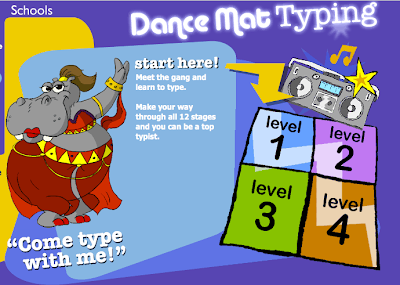
Typing Tutor
If you'd like to improve your typing skills so you can type much faster and with better accuracy, have a look at this website.


Friday, 2 March 2012
Uploading files to ePals
1. Log in to www.epals.com using your user name and password.
2. Go to "My Files"

3. "Upload File"

4. "Browse" for your file

5. Click "Upload"

6. Click "Close" (or "Upload" if you want to upload another file)

7. You can see your file here

Next time you need to open your file, go to "My Files", and click on the file you would like to open. It will download then you can open it. If you make changes to your file, you'll need to upload it again because the changes that you've made are to the file that you have downloaded, not the file in ePals My Files.
Uploading your files to ePals is another way to back up your files that you are working on for your project. I recommend that you upload your files each time you work on your project.
2. Go to "My Files"

3. "Upload File"

4. "Browse" for your file

5. Click "Upload"

6. Click "Close" (or "Upload" if you want to upload another file)

7. You can see your file here

Uploading your files to ePals is another way to back up your files that you are working on for your project. I recommend that you upload your files each time you work on your project.
Subscribe to:
Posts (Atom)